Record robot demos from your VR headset.
You control a humanoid robot (Unitree G1) inside a photorealistic 3D scan of a French château salon, streamed live to your headset from our cloud servers. Every clean attempt is saved as a training demonstration for a robot-learning model. No account, no app, no downloads — the headset's browser is all you need.
Bring the jam to the breakfast tray.
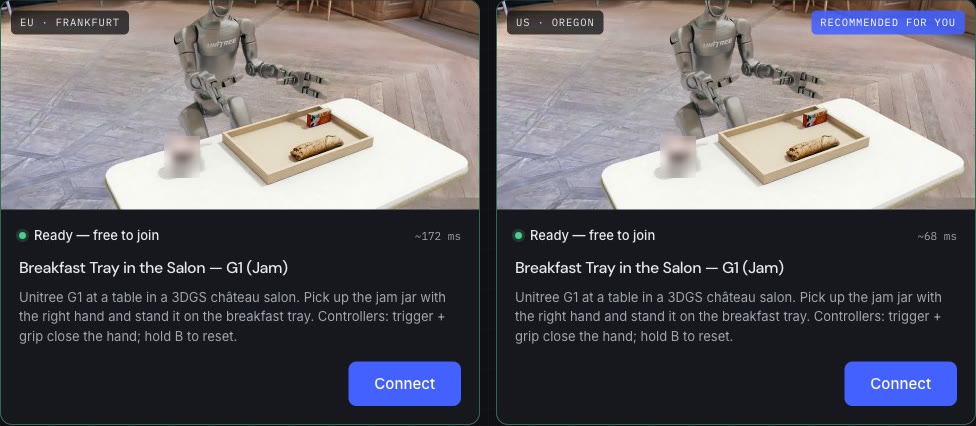
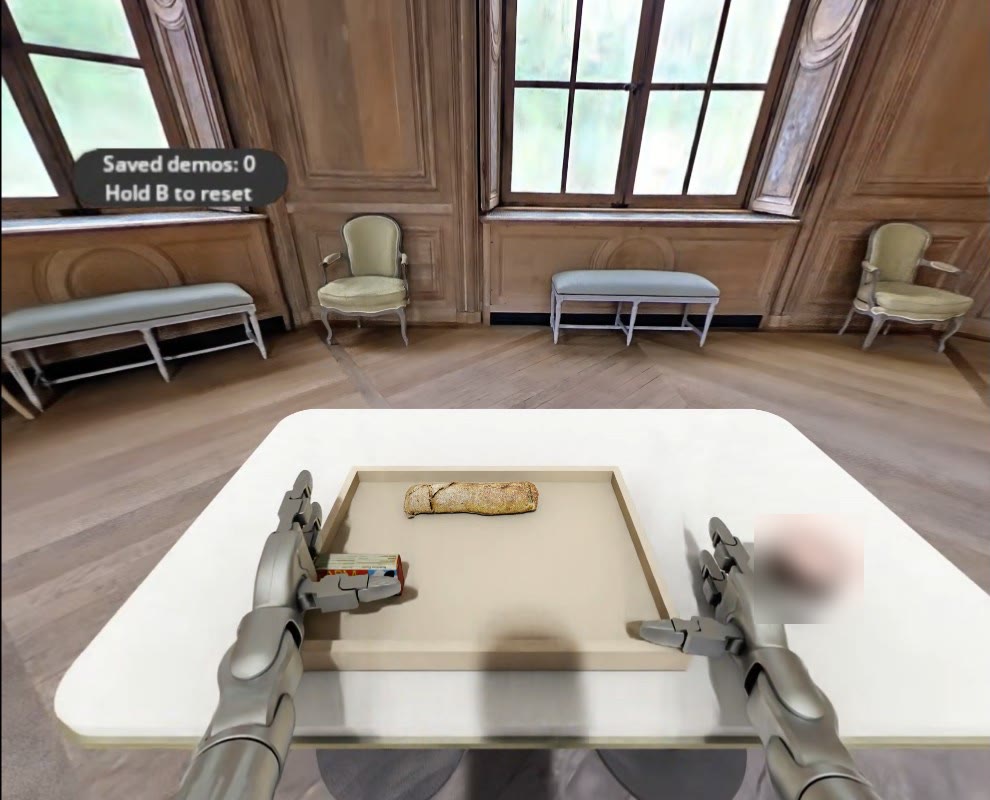
The robot stands at a table with a jar of jam on the right and a breakfast tray with a baguette on the left. Your hands move the robot's hands; you see through the robot's eyes.
One demo, step by step
- Stand up — the robot is standing, so your hands reach like its hands.
- Reach for the jam jar with your right hand. Hold it around the middle and close the hand: squeeze the trigger and the grip button on the right controller.
- Lift it, carry it over the tray and stand it upright on the tray.
- Open the hand (let go of trigger and grip) and pull your hand back about 25 cm.
- That is one demo: it is saved automatically, the Saved demos counter goes up and the table resets for the next one. Record as many as you like.
With both controllers. Quest 2 and Quest Pro can't decode the video stream (AV1) and are blocked.
5 GHz, close to the router, roughly 50 Mbit/s. Office and hotel networks often block streaming.
You'll be standing and reaching forward. Nothing to sign up for, nothing to install.
From headset to saved demos.
- Open simxr.app in the headset browser Put on the headset, open the built-in browser and type simxr.app.
- Pick a server that says Ready There are two servers, US · Oregon and EU · Frankfurt. The one marked Recommended for you is closest to you. Tap Connect and allow VR when the browser asks.
- Record demos Do the task above as many times as you like. Each success is saved the moment it happens.
- Exit when you're done Press the Meta button and quit VR (or close the tab). Back on simxr.app you'll see how many demos were saved in your session, and when the cloud backup is done.
- One operator per server. If a server shows “In use”, try the other one or wait a few minutes — the page updates by itself.
- Slow and steady wins. A jar held at the edge tilts and slips; hold it in the middle and set it down gently.
- What is recorded: the robot's motions and its camera view inside the simulation — never video of you. Sessions are anonymous.
- Left the session by accident? Connect again — demos you already saved are kept.
Troubleshooting.
| Symptom | Fix |
|---|---|
| Both servers say “In use” | Other operators are recording — wait a few minutes, the page refreshes on its own. |
| “Starting up” on a server card | The scene is (re)starting; it takes 1–3 minutes. Use the other server meanwhile. |
| Black screen or frozen picture | Press the Meta button, quit VR and connect again. Saved demos are kept. |
| The robot's hands don't follow mine | Make sure both controllers are on and tracked; quit VR and reconnect if it persists. |
| Connects but no image, on office or hotel Wi-Fi | Corporate networks often block the video stream (UDP). Try home Wi-Fi or a phone hotspot. |
| The page says my headset is not supported | Quest 2 and Quest Pro can't play this stream. Please use a Quest 3 or 3S. |
Still stuck? Email mk@simxr.tech with your headset model, the server you used and roughly what time it happened.